
Usenet has been around since 1980, and it remains one of the most capable platforms for accessing, archiving, and exchanging posts and articles. If you want to know how to use Usenet, the short answer is this: you need three components working together, a provider for server access, an indexer to find content, and a newsreader to download it. Once those three pieces connect, the workflow becomes surprisingly straightforward.
Most beginners assume Usenet is complicated. In practice, the setup takes less than an hour, and once it runs, it largely takes care of itself. The learning curve comes from not knowing which tools to choose or how the pieces fit together.
This guide walks through every step in plain language, from picking a provider and configuring your newsreader to finding content through NZB indexers and protecting your privacy along the way.
How Usenet Is Structured
Before setting anything up, it helps to understand what Usenet actually is under the hood: a decentralized network of newsgroups and articles, held together by commercial providers rather than one central company.
Newsgroups And Hierarchies
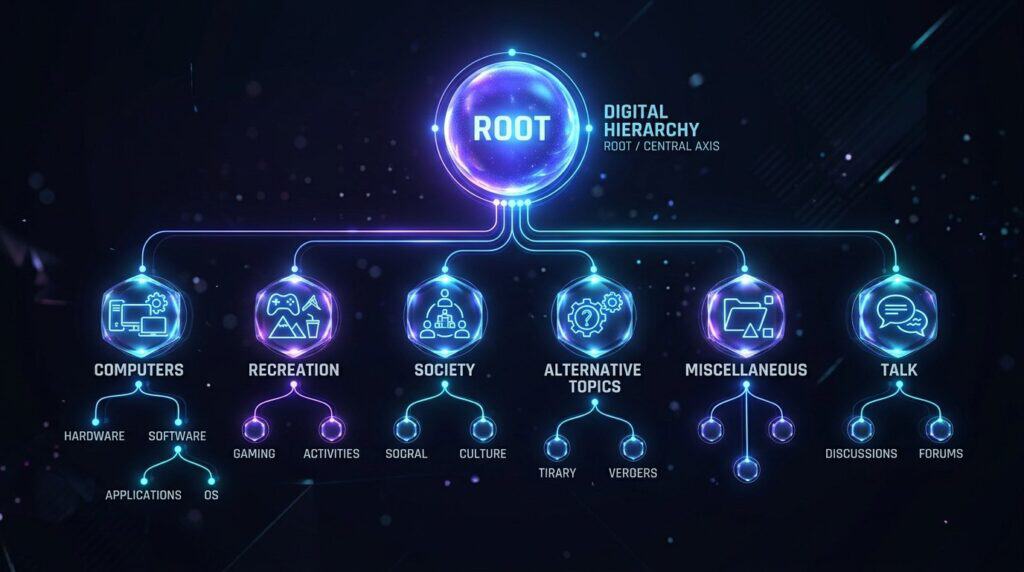
Usenet is organized into thousands of topical newsgroups, arranged in top-level hierarchies like comp (computer hardware and software), rec (recreational topics and hobbies), soc (social issues and communities), alt (alternative subjects), misc (miscellaneous), and talk (general discussion). Each hierarchy branches into layers of more specific subcategories.
Articles, Messages, And The NNTP Protocol
Within each group, users post messages, called articles, containing text or other media. Servers exchange these articles using the Network News Transfer Protocol (NNTP). Our guide to NNTP breaks down exactly how that protocol works under the hood.
The Decentralized Backbone
No single company owns Usenet. Instead, a network of commercial providers and their server farms, the Usenet backbone, propagates every posted article across the network, so when you post to one provider, it distributes to all the others. See our Usenet backbone map explained guide for a visual breakdown of how these networks connect.
What You Need Before You Start
Before touching any software, it helps to understand what you are actually building. The setup involves three distinct roles, and knowing what each one does prevents a lot of confusion later.
The Three Core Parts: Provider, Indexer, And Newsreader
Every functional Usenet setup rests on the same foundation. As described in the Usenet for Beginners guide at usenet.how, those three components are a Usenet provider, a newsreader or Usenet client, and a Usenet indexer.
- Usenet provider: A commercial service that gives you access to Usenet servers. You pay for a subscription or block account, and in return you get login credentials and a server address. The provider stores articles and handles the actual data transfer.
- Newsreader (Usenet client): Software installed on your computer or running in a browser that connects to your provider using those credentials. It handles downloading, decoding, and saving files.
- NZB indexer: A searchable database of Usenet content. You search the indexer, download a small NZB file, and hand that file to your newsreader. The newsreader uses it to locate and retrieve the actual content from your provider.
None of these three components overlap. Each one does a specific job, and all three are necessary for a complete workflow.
Two Main Ways To Access Content: Newsgroups And NZB Workflows
There are two meaningfully different ways to use Usenet, and your choice of tools often reflects which path you prefer.
The first is direct newsgroup browsing, where you connect to a group, view its article headers, and download individual posts. This works well for text-based discussions and smaller files.
The second is the NZB workflow, which is the approach most archival data organizers use today. You find a set of posts through an indexer, grab the NZB file, and let your client handle the rest automatically.
Direct Browsing Vs Search-Driven Setup
Direct browsing through a usenet browser or web interface gives you a raw view of what is posted to specific newsgroups. It is useful for understanding how Usenet is structured, but it can be slow and manual for large downloads.
A search-driven setup using an NZB indexer is faster, more organized, and far easier to automate. For anyone focused on archiving public domain assets or organizing high-resolution media libraries, the NZB workflow is the practical choice.
Choose A Provider That Fits Your Needs
Choosing the right Usenet service provider is the most consequential decision in the entire setup. The provider determines how far back in history you can reach, how fast your downloads run, and how well your privacy is protected. Retention depth, completion rate, connection count, and pricing structure are the four factors worth comparing carefully.
Retention, Article Retention, And Why It Matters
Article retention is the number of days a provider keeps articles on its servers before they expire. A provider with 5,000 days of retention gives you access to posts going back roughly 13 years. One with 1,500 days of retention cuts you off from much older material.
For archival data organizers, retention depth matters enormously. Rare public domain content, older software archives, and niche collections often live only in older posts. A tier-1 provider with deep retention is not a luxury; it is the difference between finding something and losing it permanently.
Providers like Newshosting, UsenetServer, and Eweka consistently offer among the highest retention figures in the industry, according to a side-by-side comparison at usenet.org.
Completion Rate, Speed, And Simultaneous Connections
Completion rate refers to what percentage of articles in a post are still available and intact. A high retention number means nothing if articles are missing large portions of their content.
Simultaneous connections control how many parallel streams your client opens to the server. More connections generally mean faster downloads, especially on a fast home internet line. Most premium plans offer 20 to 50 simultaneous connections.
Speed is rarely the bottleneck on a tier-1 Usenet server. On most home broadband connections, the limiting factor is your connection count setting, not the server itself.
Monthly Plans, Block Accounts, And Free Trial Options
Usenet providers typically offer two billing models.
- Monthly unlimited plans: A flat fee for unlimited download volume, usually the better deal for regular users.
- Block accounts: A one-time purchase of a set data amount, such as 100 GB or 1 TB, that never expires. Useful for occasional use or as a backup account.
Most major providers also offer a money-back guarantee, typically 30 days, which is worth using before committing. Get Newshostingi or Get Easynewsi to explore your options before locking in a plan.
How To Compare Tier-1 And Reseller Networks
A tier-1 provider operates its own server infrastructure. A reseller leases access to a backbone network and resells it under a different brand.
Tier-1 providers like Newshosting, UsenetServer, Eweka, and TweakNews tend to offer more consistent completion rates and faster performance. Resellers can be cheaper, but they depend on another company’s infrastructure and have less control over reliability. For serious archival workflows, a tier-1 usenet server is worth the small price difference.
Other reseller-style options like Thundernews can also work well as a budget-friendly starting point.
Set Up Your Newsreader And Server Connection
With a provider account in hand, the next step is installing and configuring your Usenet client. The step-by-step guide from UsenetServer outlines the same core process regardless of which client you choose: install the software, enter your NNTP credentials, enable SSL, and test the connection.
Picking The Right Usenet Client For Beginners
Three clients come up repeatedly for good reason.
- SABnzbd: Web-based interface, runs in your browser, beginner-friendly, and integrates cleanly with automation tools. This is the most common starting point.
- NZBGet: Lighter on system resources, faster processing, and well suited for home lab setups like a NAS or low-power server.
- Newsbin Pro: Feature-rich desktop client with more granular controls, better suited for users who want direct group browsing alongside NZB downloads.
For most beginners focused on archival workflows, SABnzbd is the practical first choice.
Enter NNTP Settings, Ports, And Login Details
Once your client is installed, open the server configuration panel and enter the following details from your provider account.
| Setting | Typical Value |
|---|---|
| Server address | news.yourprovider.com |
| SSL port | 563 |
| Non-SSL port | 119 |
| Username | From your account |
| Password | From your account |
| Connections | Match your plan limit |
Use port 563 with SSL enabled. Port 119 sends data in plaintext and should be avoided.
Use SSL Encryption From The Start
SSL encryption protects the data traveling between your computer and the Usenet server. Without it, your ISP can see the content of your transfers. With it, your traffic appears as encrypted data rather than readable content.
Every major provider supports SSL on port 563. There is no reason not to enable it from day one. As noted in TechRadar’s guide to staying secure on Usenet, SSL is the baseline security layer for any Usenet connection.
Test Your Connection And Fix Common Setup Errors
After saving your settings, use the “Test Server” or “Check Server” function built into your client. A successful test confirms your credentials are correct and the connection is live.
Common issues and fixes:
- Authentication failed: Double-check username and password, including case sensitivity.
- Connection timeout: Confirm the server address and port number. Try switching between SSL and non-SSL ports temporarily to isolate the issue.
- Zero connections established: Check your firewall or antivirus software blocking outbound traffic on port 563.
Once the test passes, your newsreader is ready to use.
Find Content With Newsgroups, Search, And NZB Tools
Finding content on Usenet requires either browsing directly through newsgroups or using an NZB indexer to run targeted searches. Both approaches have their place, but they serve different purposes.
Browsing Text And Binary Groups
Usenet is organized into newsgroups arranged by topic hierarchy. Groups in the alt.binaries namespace, commonly called binary groups, are where most file content lives. Groups under hierarchies like rec, sci, and comp are primarily text-based discussion spaces.
A usenet browser or client can pull down the full group list from your provider. You subscribe to groups you want to follow, and your client downloads the article headers so you can see what has been posted. For text discussions, this direct method works well.
What An NZB File Does
An NZB file is a small XML document that contains the location information for every article segment that makes up a larger file or collection. Think of it as a map that tells your newsreader exactly where to look on the Usenet server.
When you open an NZB file in SABnzbd or NZBGet, the client reads that map, connects to your provider, and pulls down all the referenced segments. It then decodes and assembles them into the final file. The process is largely automatic once the NZB is loaded.
How NZB Indexers And NZB Search Work
An NZB indexer crawls Usenet continuously, cataloging posts and making them searchable. When you search an indexer, you are searching that catalog rather than the raw Usenet feed itself. As described in the r/usenet Starter Guide, indexers work similarly to the way trackers function in other distributed discussion networks, providing pointers to content rather than hosting it.
Well-known indexers include NZBgeek, NZBFinder, and NZBIndex. Some require registration or invite codes, though open options like Usenet-Crawler skip that requirement entirely. NZBKing at nzbking.com allows open browsing and NZB generation across millions of posts without an account.
Search Interfaces, Filters, And Index Quality
Most NZB indexers offer filters for age, group, file type, and completeness. Using these filters significantly improves result quality.
Key things to look for in a search interface:
- Completeness indicator: Shows whether all segments are still available.
- Age filter: Helps match results to your provider’s retention window.
- Group filter: Narrows results to specific binary groups.
Index quality varies. Paid indexers like NZBgeek tend to have better categorization, pre-processing, and spam filtering than free alternatives. For serious archival use, a paid indexer is worth the modest cost.
How The Full Workflow Connects Together
Understanding each component individually is useful, but seeing how to use Usenet as a complete end-to-end process is what makes it click. The workflow moves from search to indexer to NZB file to newsreader to provider, and each step hands off cleanly to the next.
From Search Result To Completed Download
Here is the standard NZB workflow in practice.
- Open your NZB indexer and search for what you want.
- Find a result with a high completeness rating that falls within your provider’s retention window.
- Download the NZB file from the indexer.
- Open the NZB file in SABnzbd or NZBGet, or drag and drop it into the interface.
- The client reads the NZB, connects to your Usenet provider, and downloads all article segments.
- The client decodes and assembles the segments into the final file automatically.
The entire process after step four is hands-off.
The final result is often a multi-part RAR archive together with a PAR2 recovery set, and many Usenet release sets also include a small companion file with a .nfo extension describing what’s inside. If you find one of these sitting in your download folder, our guide on what NFO files are covers how to open and read it.
Direct Group Reading For Discussion-Based Use
Not every Usenet workflow involves binary downloads. Text-based newsgroups remain active for discussions on topics ranging from computing and science to niche hobbies.
For this use case, a client like Mozilla Thunderbird configured for NNTP works well. You subscribe to groups, download headers, read threads, and reply directly. No indexer is needed for this workflow at all.
Using SABnzbd Or NZBGet With Automation Tools
SABnzbd and NZBGet both expose APIs that allow external tools to send download requests programmatically. This is what makes headless, automated archival setups possible.
Both clients can be configured to watch a folder for new NZB files, process them automatically, and sort completed downloads into organized directory structures. This is the foundation for any home lab archival workflow.
Where Sonarr And Radarr Fit In For Organized Workflows
Sonarr and Radarr are API synchronization hubs that automate the search and retrieval of episodic and film-based media. They connect to your NZB indexer and your SABnzbd or NZBGet instance simultaneously.
When new content matching your criteria becomes available on Usenet, these tools detect it, pull the NZB, send it to your download client, and file the completed result into your organized library structure. For archival data organizers managing large collections, this level of automation transforms Usenet from a manual process into a fully managed pipeline.
Protect Privacy And Keep Your Setup Sustainable
Privacy on Usenet is more achievable than on most comparable platforms, largely because the download model does not expose your IP address to other peers the way peer-to-peer distribution does. That said, your Usenet provider can still see what you are downloading, and your ISP can see that you are using Usenet unless your connection is encrypted.
When SSL Is Enough And When A VPN Helps
SSL encryption on port 563 protects the content of your transfers from ISP inspection. For most users, this is sufficient. Your ISP sees encrypted traffic going to a news server, but not what you are downloading.
A VPN adds another layer by masking the fact that you are connecting to a Usenet service at all. As covered in our own guide on how to stay anonymous on Usenet, combining SSL with a no-logs VPN gives you meaningful privacy coverage across both your provider relationship and your ISP visibility.
If your primary concern is data security in transit, SSL alone is reasonable. If you want to minimize exposure to your provider as well, a VPN is the more complete solution.
Logging Policies, Account Safety, And Secure Habits
Not all Usenet service providers handle account data the same way. Before subscribing, check the provider’s privacy policy for specifics on:
- Whether session logs are retained and for how long.
- Whether payment data is linked to usage records.
- Whether the service operates under a jurisdiction with data retention laws.
Providers like Newshosting publicly state minimal logging policies, which is worth factoring into your choice alongside retention and speed.
On the account side, use a strong unique password and pay with a privacy-respecting payment method if anonymity is a priority.
Organizing Downloads For Long-Term Archival Use
A sustainable Usenet setup goes beyond just downloading. Completed files should land in a structured directory with clear naming, and critical archives should be backed up to at least one secondary location.
SABnzbd and NZBGet both support post-processing scripts that can automatically rename, categorize, and move files after download. Setting these up early saves significant reorganization effort later.
For large collections, a simple folder structure organized by content type and date acquired is more durable than complex tagging systems that depend on specific software to read.
How Usenet Compares To Other Platforms
Usenet is often seen as a precursor to modern social media: both let you share posts, join discussions, and follow topics you care about. The difference is texture. Social platforms are visual and algorithm-driven; Usenet is text-first, decentralized, and comparatively anonymous, which is part of why it still appeals to people who value privacy and unmoderated discussion over a curated feed.