

What do I need to download from Usenet? To download from Usenet, you need three essential tools: a subscription to a premium Usenet provider for server access, an NZB indexer to search for files, and a newsreader client to process the download and extract the files.
, learning how to download from Usenet is the ultimate upgrade.
Because what Usenet is fundamentally differs from the World Wide Web, it does not work like a normal website. You cannot just open Google Chrome, search for content, and click download.
However, once you understand the basic setup, downloading massive binary files at gigabit speeds becomes incredibly easy. In this guide, we will walk you through the exact process of setting up your system in four simple steps.
The 3 Essential Tools You Need
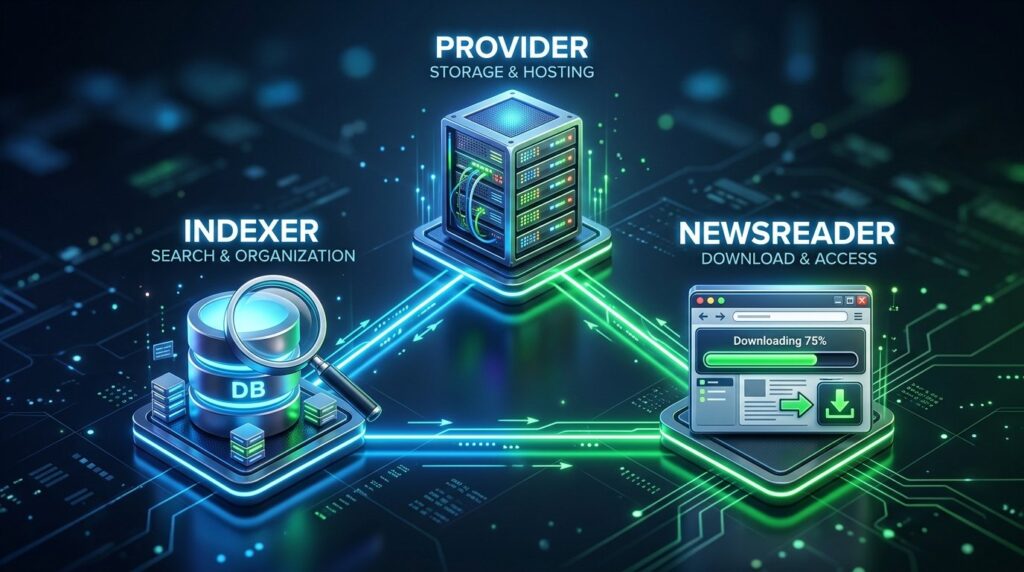
Before we dive into the steps, you must understand the “Usenet Trifecta.” To successfully download anything, you need these three components working together:
- The Provider: The massive server farm that actually hosts the files.
- The Indexer: The search engine you use to find the files on those servers.
- The Newsreader: The software on your computer that connects the two together and downloads the data.
Step 1: Choose a Premium Usenet Provider
The first step in learning how to download from Usenet is getting access to the network. You cannot connect without a provider.
Premium providers own the massive hard drives where the files are stored. When choosing a provider, you want one with high retention (so you can find older files) and fast speeds.
Here are the top recommendations from our best Usenet providers guide:
- Newshosting: The best overall provider. It offers the highest retention rates, uncapped gigabit speeds, and includes a free newsreader.
- Eweka: The best provider for European users, known for having incredible completion rates for rare files.
Ready to pick one? Get Newshostingi for the included newsreader, or Get Ewekai if you are in Europe.
Step 2: Install a Usenet Newsreader
Once you have your provider account, you need software to connect to it. This software is called a Usenet newsreader.
If you signed up for Newshosting, you can simply download their included software. If you want to use a free, open-source tool, SABnzbd and NZBGet are the industry standards.
Once installed, you must configure the newsreader with your provider’s details:
- Enter your provider’s server address (e.g.,
news.newshosting.com). - Enter your username and password.
- Crucial Step: Check the box to enable SSL encryption and change the port to 563. This ensures your ISP cannot monitor your downloads. To ensure total privacy, you should also learn how to stay anonymous on Usenet by using a VPN — NordVPN is a solid, no-logs option built for this.
Step 3: Find Files Using an NZB Indexer
Now that your software is connected to the server, you need to find something to download. This is where an indexer comes in.
Because files on the network are broken into hundreds of tiny, messy text posts, you cannot search for them manually. An NZB indexer scans the network, pieces everything together, and creates a clean search engine.
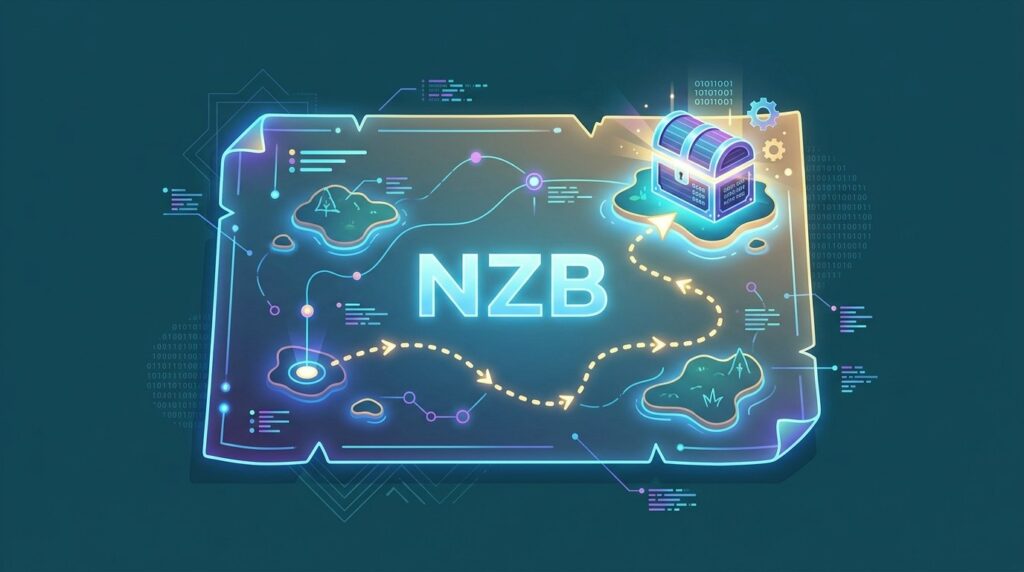
When you search for a file on an indexer (like NZBgeek or NZBFinder), you download a tiny text file called an .nzb file. Think of an NZB file like a treasure map—it tells your newsreader exactly where to find the file on your provider’s servers.
Step 4: How to Download from Usenet (The Process)
With your provider active, your newsreader running, and your indexer bookmarked, here is the actual workflow:
- Open your web browser and go to your chosen NZB indexer.
- Search for the content or file you want.
- Click the download button to save the
.nzbfile to your computer. - Open that
.nzbfile with your newsreader software (like SABnzbd). - The newsreader will automatically connect to your provider, download the file at maximum speed, repair any missing pieces, and extract the final file into your downloads folder.
The Easynews Alternative (No Software Required)
Does setting up third-party software and indexers sound too complicated? There is an all-in-one shortcut.
Easynews is a premium provider that has built the indexer and the newsreader directly into a web browser interface. You simply log into their website, search for a file, and click download directly to your computer or phone. It is by far the easiest method for absolute beginners.
Ready to try it? Get Easynewsi and skip the software setup entirely.