
Here is a straightforward look at how to use sabnzbd, covering what it does well and where it falls short. How do you use SABnzbd? To use SABnzbd, you must first purchase a subscription to a premium Usenet provider. You then open the SABnzbd setup wizard, enter the provider’s server address, your username, and password, and enable SSL encryption on port 563. Once connected, you can upload NZB files to begin downloading.
If you have decided to build a Plex server or a home NAS, you will quickly learn that manual downloading is a waste of time.
You need a powerful, automated download client. As we discussed in our NZBGet vs SABnzbd comparison, SABnzbd is widely considered the best Usenet newsreader for beginners. It is free, open-source, and runs entirely in your web browser.
However, when you install SABnzbd for the first time, you are greeted by a blank setup wizard asking for “Server Details.” If you are confused, do not panic. In this guide, we will explain exactly how to use SABnzbd, where to get your server details, and how to configure it for maximum speed and privacy.
How to Use SABnzbd: Quick Overview
Before the step-by-step walkthrough, here is the short version of how to use SABnzbd from a fresh install to your first automated download.
Step 1: Get Your Server Details (Required)
SABnzbd is just a piece of software; it does not actually contain any files. To use it, you must connect it to a massive server farm.
This means you must purchase a subscription to one of the best Usenet providers. When you subscribe, the provider will email you three critical pieces of information: a Server Address, a Username, and a Password.
If you do not have a provider yet, here are the two best options for SABnzbd:
1. Newshosting (Best for Unlimited Speed)
Newshosting operates its own Tier-1 backbone, meaning it offers uncapped gigabit speeds and the highest retention in the industry. It is the gold standard for SABnzbd users.
- Server Address:
news.newshosting.com
Ready to try it? Get Newshostingi and plug the server details above into SABnzbd.
2. Eweka (Best for European Users)
If you read our Eweka review, you know it is an independent European provider. It is the best choice if you are tired of missing articles or broken downloads.
- Server Address:
news.eweka.nl
Ready to try it? Get Ewekai and plug the server details above into SABnzbd.
Step 2: The SABnzbd Setup Wizard
Once you have your provider details, open SABnzbd. It will automatically launch a setup wizard in your default web browser.
- Language: Select your preferred language and click “Start Wizard.”
- Server Details: This is the most important screen. Enter the details you received from your provider (e.g., Host:
news.newshosting.com, plus your Username and Password). - Enable SSL Encryption: Check the box that says “SSL” and ensure the Port changes to 563. This is mandatory! SSL encrypts your download tunnel so your Internet Service Provider cannot see what you are downloading.
- Connections: Set your connections to the maximum allowed by your provider (usually between 50 and 100).
- Test Server: Click the “Test Server” button. If it turns green, you are successfully connected to the network!
Step 3: Finding and Retrieving Articles
Now that SABnzbd is connected to the server, how do you actually retrieve a file?
SABnzbd does not have a built-in search bar. Instead, you must use a third-party search engine called an NZB indexer (like NZBgeek or DrunkenSlug).
- Go to your favorite indexer website and search for a file.
- Click the download button. This will save a tiny text file ending in
.nzbto your computer. - Drag and drop that
.nzbfile directly into the SABnzbd web interface. - SABnzbd will read the file, connect to your Usenet provider, and download the massive binary file at maximum speed.
- Once finished, SABnzbd will automatically repair any broken pieces and extract the final file into your “Downloads” folder.
If you ever want to inspect an NZB file’s contents before dropping it into SABnzbd, or open one without a downloader installed, our guide on how to open NZB files covers the different methods.
Step 4: Automating with Sonarr and Radarr

Manually dragging and dropping NZB files is fine for occasional downloads, but true data hoarders automate the entire process.
SABnzbd integrates flawlessly with Sonarr and Radarr. These programs will automatically search your indexers for new content matching your library, and then silently send the NZB files directly to SABnzbd without you ever lifting a finger.
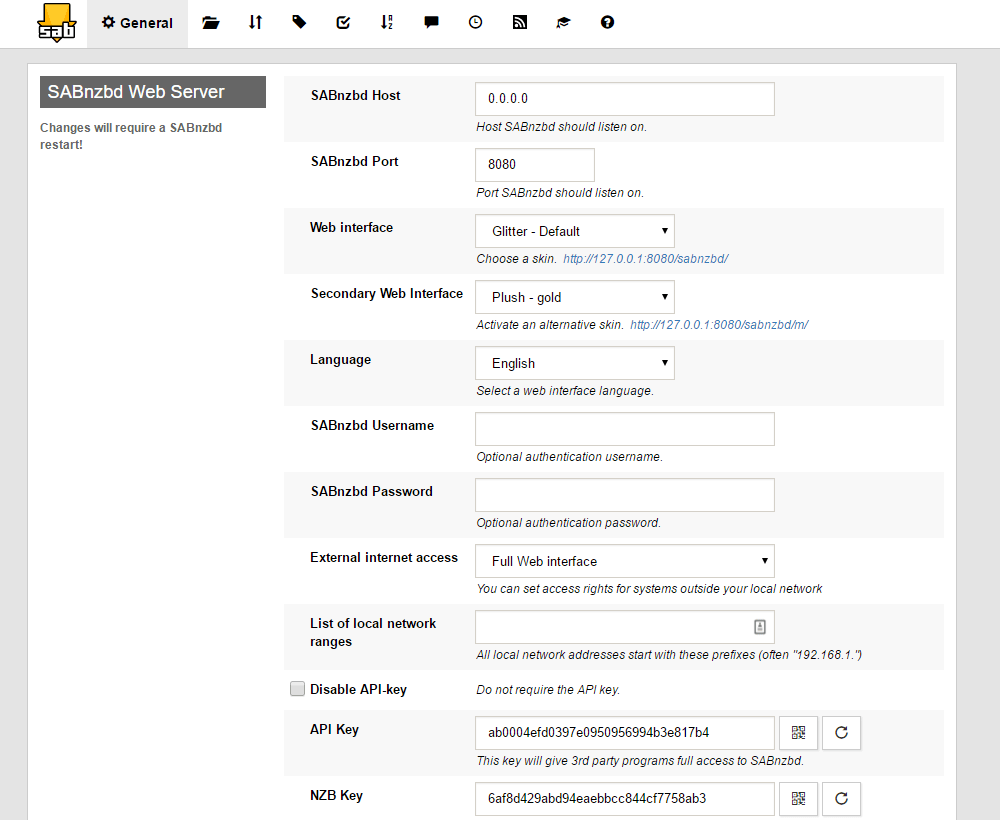
To connect them, click the “Gear” icon in the top right corner of SABnzbd to open the Settings. Click on the General tab, and copy your API Key. You will paste this API key into the settings of Sonarr, Radarr, and Prowlarr to link the software together.
Server Settings for Our Recommended Providers
Use the entry for your provider in the Server Details step above, with SSL turned on.
| Provider | Server | SSL port |
|---|---|---|
| Newshosting | news.newshosting.com | 563 |
| Eweka | news.eweka.nl | 563 or 443 |
| Easynews | news.easynews.com | 563 |
| UsenetServer | news.usenetserver.com | 563 |