
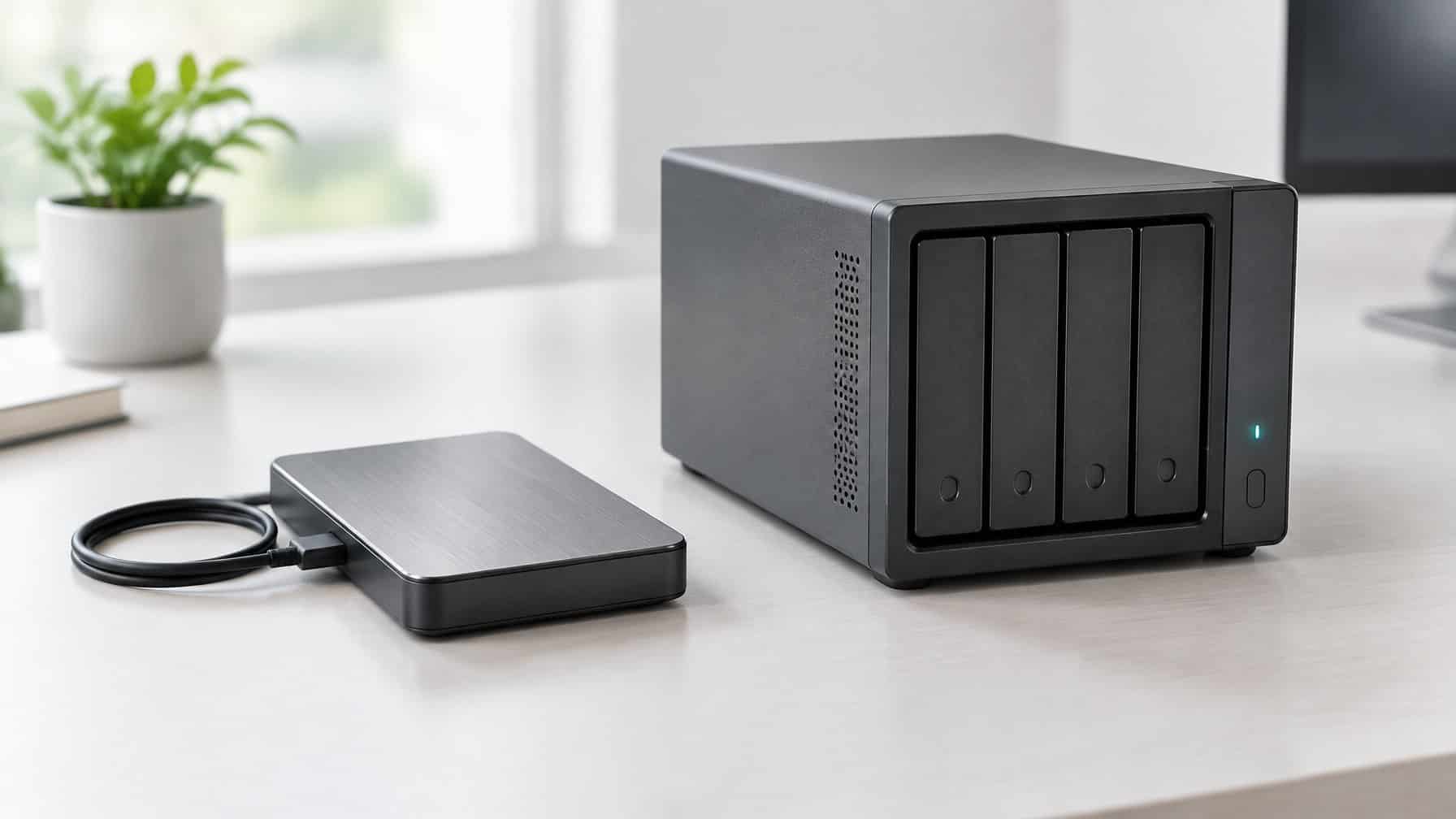
What is the difference between DAS vs NAS? The main difference between DAS (Direct Attached Storage) and NAS (Network Attached Storage) is how they connect to your devices. A DAS plugs directly into a single computer via a USB or Thunderbolt cable. A NAS plugs into your internet router, allowing multiple computers, phones, and smart TVs to access the files wirelessly over the network.
If you have decided to stop paying for expensive cloud storage and want to build your own massive digital archive, you need a multi-bay hard drive enclosure.
When you start shopping, you will quickly realize there are two entirely different types of enclosures on the market: DAS and NAS.
While they look almost identical from the outside (they are both metal boxes that hold NAS-grade hard drives), they function completely differently. In this DAS vs NAS guide, we will compare their speeds, costs, and functionality to help you decide which one is best for your setup.
| Feature | DAS (Direct Attached Storage) | NAS (Network Attached Storage) |
|---|---|---|
| How It Connects | Plugs directly into a single computer via USB-C or Thunderbolt cable | Plugs into your router via Ethernet and broadcasts storage over Wi-Fi |
| Multi-Device Access | Only the one computer it’s physically plugged into | Multiple computers, phones, and smart TVs simultaneously |
| Speed & Performance | Very fast, limited only by drive speed, zero network latency — best for 4K video editing | Bottlenecked by your network, around 110 MB/s on a Gigabit router (faster with 2.5GbE/10GbE) |
| Plex & Media Servers | Needs a separate computer running 24/7 to host Plex | Runs Plex, SABnzbd, and Sonarr directly via Docker, standalone and always on |
| Price | Cheaper — no CPU, RAM, or OS required | More expensive due to its built-in processor and operating system |
| Best For | Video editors/photographers needing max transfer speed, or budget users with an always-on computer | Data hoarders wanting wireless access and a standalone, automated 24/7 media server |
1. How They Connect (Local vs. Network): Das vs Nas
This is the fundamental difference between the two systems.
DAS (Direct Attached Storage): A DAS is essentially a massive, multi-drive external hard drive. It has no brain, no operating system, and no network port. It connects directly to your computer using a high-speed USB-C or Thunderbolt cable. Because it is physically tethered to one machine, only that specific computer can access the files. If you want to view a file on your laptop, you have to unplug the DAS from your desktop and plug it into your laptop.
NAS (Network Attached Storage): A NAS is a standalone mini-computer. It has its own processor, RAM, and operating system. You do not plug it into your computer; you plug it into your internet router using an Ethernet cable. Once connected, the NAS broadcasts its storage space over your home Wi-Fi network. Your desktop, your laptop, and your smartphone can all access the files on the NAS simultaneously, without any USB cables.
2. Speed and Performance
If you need to move massive amounts of data as fast as possible, how do they compare?
DAS: Because a DAS connects directly to your computer via USB 3.2 or Thunderbolt, the transfer speeds are incredibly fast. You are only limited by the physical speed of the hard drives inside the box. If you are a professional video editor scrubbing through 4K video timelines in Premiere Pro, a DAS is the absolute best choice because there is zero network latency.
NAS: A NAS is bottlenecked by your home network. If your NAS is plugged into a standard Gigabit router, your maximum transfer speed will be around 110 MB/s. While this is plenty fast for streaming movies or running Sonarr and Radarr, it is noticeably slower than a direct USB connection. (Note: You can fix this by upgrading to a prosumer router with 2.5GbE or 10GbE ports, but that is expensive).
3. Plex and Media Servers
If you are learning how to download from Usenet, you likely want to build an automated Plex server.
NAS: A NAS is the undisputed king of media servers. If you buy the best home NAS (like a Synology or QNAP), you can install Plex, SABnzbd, and Sonarr directly onto the NAS itself using Docker. The NAS sits in the corner, downloading and serving movies 24/7. Your main computer can be completely turned off.
DAS: A DAS cannot run software because it has no processor. If you want to use a DAS for Plex, you must plug the DAS into a dedicated computer (like an Intel Mac Mini) and leave that computer turned on 24 hours a day. If the computer goes to sleep, your Plex server goes offline.
4. Price and Value
Because a DAS does not require a CPU, RAM, or a complex operating system, it is significantly cheaper than a NAS.
You can buy a massive 5-bay Terramaster DAS for a fraction of the cost of a 4-bay Synology NAS. If you are on a strict budget and just need a massive box to hold your shucked hard drives, a DAS is an incredible value.
- Best Budget DAS: View Terramaster D4-300 DASi
- Best Budget NAS: View Synology DS225+i
Conclusion: Which Should You Buy?
Choose a DAS If:
You are a video editor or photographer who needs the absolute fastest transfer speeds via Thunderbolt. Or, choose a DAS if you are on a strict budget, already have a dedicated computer that stays on 24/7, and just need a cheap box to hold multiple hard drives.
Choose a NAS If:
You want to access your files wirelessly from your laptop, phone, and smart TV. A NAS is the ultimate tool for data hoarders who want to build a standalone, automated home media server that runs 24/7 without relying on their main desktop computer.