
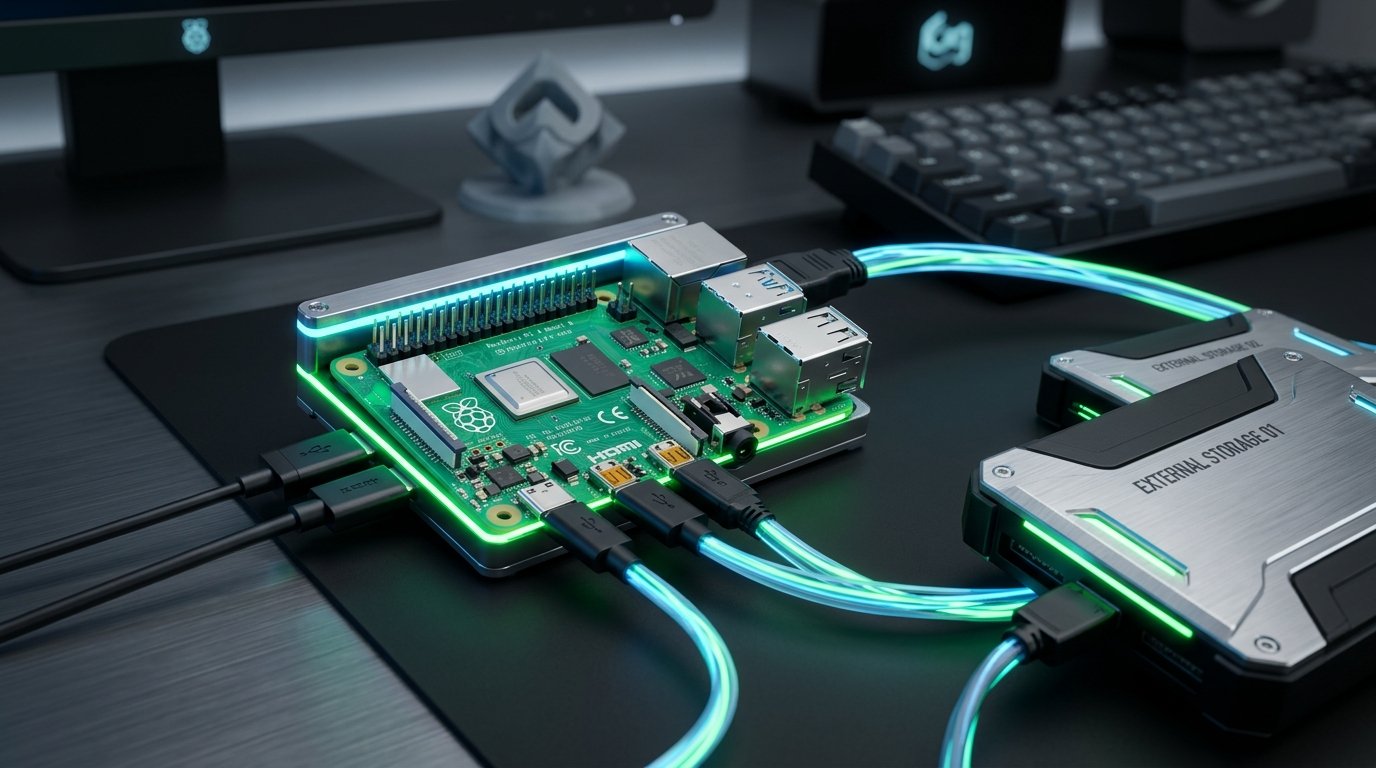
What is a Raspberry Pi NAS? A Raspberry Pi NAS is a do-it-yourself Network Attached Storage system built by connecting external hard drives to a Raspberry Pi microcomputer. It provides a cheap, low-power way to store files and back up data across your home network without buying an expensive pre-built enclosure.
If you know what a NAS is, you know that buying a pre-built Synology or UGREEN enclosure can be incredibly expensive.
For data hoarders on a strict budget, there is a much cheaper alternative: building your own Raspberry Pi NAS. A Raspberry Pi is a tiny, credit-card-sized computer that costs a fraction of a traditional desktop. Despite its small size, it is more than powerful enough to manage your home backups, serve files, and even automate your downloads.
In this guide, we will explain exactly what hardware you need and how to build your own DIY network storage system.
Why Build a Raspberry Pi NAS?
Building a DIY NAS using a Raspberry Pi has three massive advantages over buying an off-the-shelf system:
- Cost: A traditional 2-bay NAS enclosure often costs over $200 (without hard drives). A Raspberry Pi board costs around $50 to $80.
- Power Consumption: A Raspberry Pi uses incredibly little electricity. You can leave it running 24/7 as a dedicated file server without noticing a bump in your electric bill.
- Customization: Because it runs a full Linux operating system, you have complete root access. You can install custom scripts, ad-blockers (like Pi-hole), and lightweight Usenet newsreaders.
The Hardware You Need to Get Started
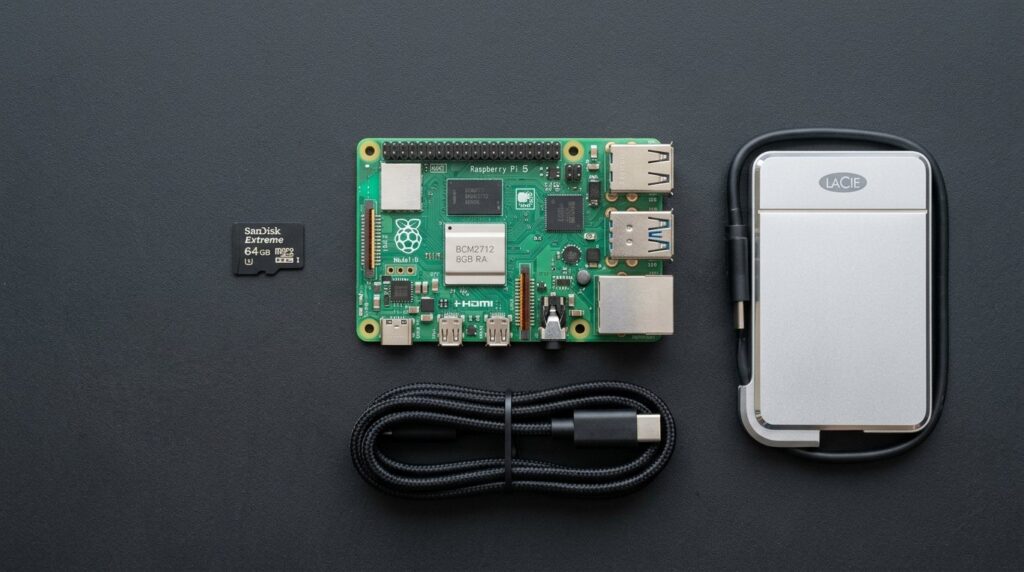
To build your Raspberry Pi NAS, you will need a few specific pieces of hardware.
1. The Raspberry Pi Board
The best board for this project is the Raspberry Pi 5 or the Raspberry Pi 4.
You must use a Pi 4 or newer because they feature true Gigabit Ethernet ports and USB 3.0 ports. Older models (like the Pi 3) have slow USB 2.0 ports that will severely bottleneck your file transfer speeds. We highly recommend buying a complete starter kit so you get the power supply and cooling case included.
- Buy the CanaKit Raspberry Pi 5 Starter Kit PRO (128GB Edition) (8GB RAM)i
- Buy the RasTech Raspberry Pi 5 8GB Kit 64GB Edition
2. The Storage (External Hard Drives)
Unlike a traditional NAS, a Raspberry Pi does not have internal SATA bays to slot hard drives into. Instead, you will use external USB hard drives.
If you are just backing up documents and photos, a simple portable drive is fine. If you are hoarding terabytes of data, you will want a massive desktop external drive.
- Best Portable Drive: WD 4TB My Passporti
- Best High-Capacity Drive: Seagate 12TB Expansion Desktop Drivei
Important: The Raspberry Pi cannot supply enough electricity through its USB ports to power multiple large hard drives. If you are plugging in multiple drives, you MUST buy a powered USB 3.0 hub that plugs into the wall.
How to Set Up Your Raspberry Pi NAS
Once you have your hardware, the software setup is surprisingly simple. You do not need to be a Linux expert.
Step 1: Install the Operating System
You will need to flash an operating system onto a MicroSD card. The easiest option is Raspberry Pi OS Lite (a version without a desktop interface to save system resources). You can install this easily using the official Raspberry Pi Imager tool on your main computer.
Step 2: Install OpenMediaVault (OMV)
Instead of manually configuring complicated network sharing protocols in the Linux command line, you should install OpenMediaVault (OMV).
OMV is a free, open-source NAS operating system designed specifically for devices like the Raspberry Pi. Once installed, it gives you a beautiful web interface (just like a Synology) where you can manage your folders, create user accounts, and share your drives across your Wi-Fi network.
Step 3: Automate Your Downloads
Because the Raspberry Pi is a low-power device, you need to be careful about which software you run.
If you plan to retrieve Usenet content, you should use highly efficient, lightweight software. If you read our NZBGet vs SABnzbd comparison, you know that NZBGet is written in C++ and is perfectly optimized for the Raspberry Pi.
Simply install NZBGet on your Pi, plug in your best Usenet provider details, and let your tiny NAS retrieve Usenet content directly to your external hard drives 24/7!